
Remote eExams utilising Respondus LockDown Browser and Monitor is to support students enrolled in selected units. From Semester 1 2026, final exams scheduled at external exam centres will be replaced with Remote eExam for eligible domestic students enrolled only in Online Scheduled (OS)/Online Flexible (OF) attendance modes.
You are included if:
- You are an eligible domestic student enrolled only in Online Flexible (OF) and/or Online Scheduled (OS) attendance modes, your postal address is more than 100km from your enrolled campus, and would normally sit exams at an external exam centre.
Note: Student visa holders and all other students must attend their in-person examination(s) at their enrolled campus, regardless of their enrolled attendance mode; or
- Your exam is listed as "Remote eExam" on the exam timetable.
Watch this short video to understand how Respondus works:
Prepare for Remote eExam
Your device must meet the minimum standards:
- Windows 10 and 11 or MacOS 12+
- Web camera (internal or external) and microphone. Mac users: Follow these instructions to grant camera/microphone permissions.
- Stable and reliable broadband internet connection.
- iPad / Smartphone / tablets are NOT allowed.
It’s student’s responsibility to ensure they have access to a device that meets the minimum standards for their Remote eExam.
- Follow the Download instructions.
- Perform a one-time installation of Respondus LockDown Browser using the official Murdoch link. (You will need to have the administrative rights to your device for installation.)
- Watch download videos for Windows/Mac/Chromebook
Note: Respondus is unique to each institution, you must only install the version provided via our link.
Requirements:
- Quiet, private and well-lit space with no interruption
- Sit at a desk or table (NOT bed or sofa)
- Only permitted Candidate Aids (check your exam timetable) on your workspace
- NO public spaces, presence of other people, or unauthorised materials
The purpose of this Collection Notice is to advise how the University collects your personal information in accordance with the Privacy and Responsible Information Sharing Act 2024 (WA)
Type of Information Collected
This may include video and audio recording.
Use and Disclosure
Your information will be used by authorised staff for the purpose stated above. It may be disclosed to relevant government departments, service providers, or other entities where required by law.
Access and Correction
You may request access to your personal information and request corrections if you believe it is inaccurate, incomplete, or out of date by submitting a FOI Application via Freedom of Information application form.
What happens If You do not Provide Your Information
We collect your information to provide you with the services you need. If you choose not to share the requested details, we may not be able to deliver the service as expected. Personal information provided by you will be handled by Murdoch University, in accordance with the University’s Privacy Policy.
Any queries
Your questions regarding the use of your personal information can be directed to:
The Privacy Officer
University Secretary’s Office
90 South Street, Murdoch, Western Australia, 6150
+61 (8) 93607647
Universitysecretary@murdoch.edu.au
Day of Remote eExam
Before you start your exam, please take a few minutes to ensure you are fully prepared.
Device and system
- Use the same device as your Practice Quiz
- Ensure your device is plugged in
- Restart your device before the exam
- Use a strong and stable internet connection (preferably a wired connection)
- Close unnecessary applications and tabs
- Turn off notifications, updates and sleep/hibernate mode
- Disable energy-saving mode
- Ensure you are using the latest version of Respondus LockDown Browser
Exam workspace
- Set up your workspace according to guidelines (see above)
- Have only permitted Candidate Aids (check your exam timetable)
- Remove all unauthorised materials and electronic devices (such as phones, smartwatches, tablets, secondary screens)
Identification and camera ready
- Dress appropriately (as if attending a face-to-face exam)
- Remove: earbuds, headphones, smartwatches, headwear (unless religious/cultural)
- Have valid physical photo ID ready (digital IDs NOT accepted):
- Murdoch University Student ID, OR
- Passport, OR
- Driver's Licence, OR
- Singapore NRIC (if applicable)
Your Remote eExam follows the same standards and conditions as on-campus exams. The University treats exam dishonesty with utmost seriousness. Breaches may lead to disciplinary action under Student Integrity Regulations.
You must:
- Follow all exam instructions strictly
Misinterpretation is not a valid reason for non-compliance. - Complete ID Check properly
Correct example
Your student ID card should completely fill the camera frame, as shown in the image below.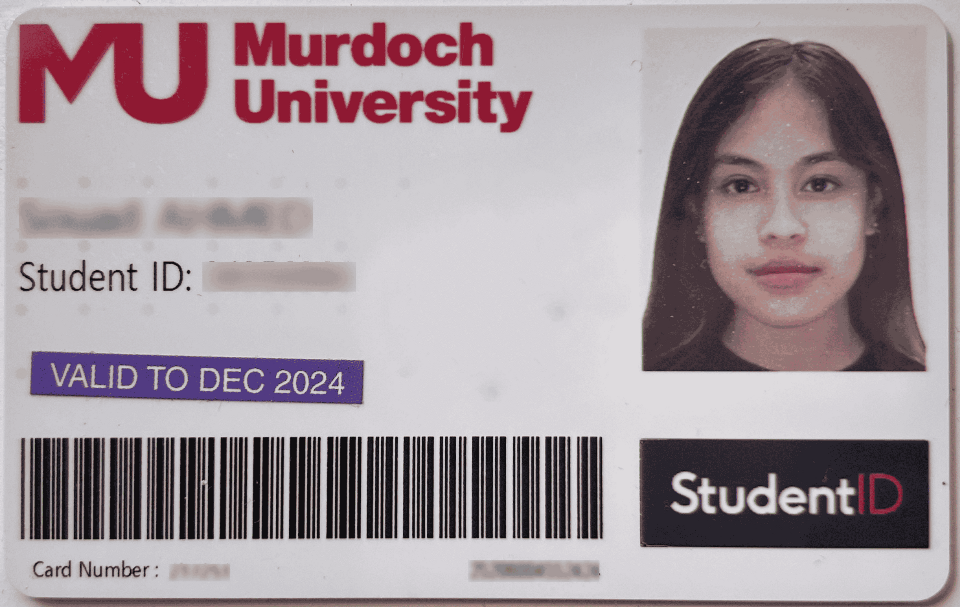
Incorrect example
Do NOT position the ID card next to your face. If we could not read the details on the card, your ID cannot be verified, and Unit Coordinator may decide not to mark your exam.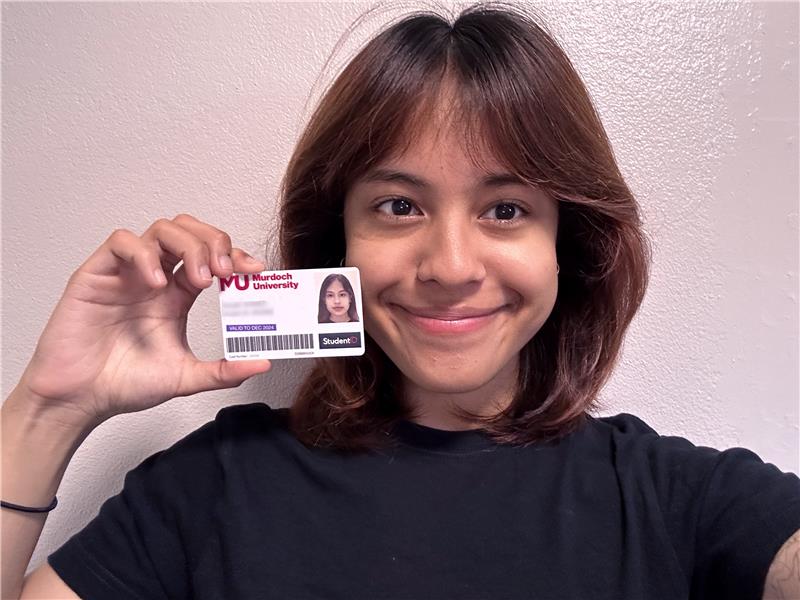
Please note that headwear worn for religious or cultural purposes is permitted. If it covers the face, you will be required to briefly remove it for identity verification or contact the Exams Office to discuss. If your identity cannot be verified, Unit Coordinator may decide not to mark your exam.
- Complete Environment Check properly
Refer to the video guide and FAQ section to understand our expectations and tips for a successful Environment Check. Please note that incomplete and/or unclear Environment Check will be flagged and may be reported as misconduct. - Use only permitted resources
Only use Candidate Aids listed on the exam timetable. Remove all unauthorised materials and electronic devices. Possession and/or use of unauthorised item during the exam can lead to disciplinary action under the Student Integrity Regulations. Common unauthorised items include mobile phones, laptops, iPads, smartwatches, earphones and other electronic devices, unauthorised notes. All electronic devices must be switched off and removed from your exam workspace before the exam begins. - Work independently
Communication or collaboration with others, and the use of unauthorised resources, devices, software, or artificial intelligence (AI), is not permitted and may constitute academic misconduct. - Stay visible in camera frame
Keep your face clearly shown throughout. Avoid leaving workspace or obscuring your face or turning off your camera.
Please ensure you understand the expected conduct during your Remote eExam. Non-compliance will be flagged and may be reported as misconduct. Contact Exams Office if you have any questions.
- Log into LMS (Moodle) at least 5 minutes before the start of the exam
- Go to unit page
- Click exam link displayed under its own heading e.g. Final Exam (appears at start time)
- Click "Launch LockDown Browser"
- Complete the Start-up Check – follow on-screen instructions:
- Agree to Terms of Use
- Webcam Check
- Take a Picture
- Show a valid physical ID
- Environment check (video guide)
- Face Detection
Note: Your exam timer will only start after completing the Start-up Check. If you begin your exam late, you will not get the full exam time, even though the timer will still show the full duration. Your exam will automatically close and submit at the scheduled end time, regardless of when you start.
- Respondus LockDown Browser locks you into the exam
- You will see a “Recording” icon on the top right corner
- Stay focused and complete your exam
- The answers are saved when you click next or finish attempt
- You must ensure your face is visible throughout exam
- Submit when finished
- Webcam stops recording once you submit
- Exit the browser
- Unit Coordinator reviews flagged recordings
- Failure to comply with any of the requirements - such as failure to present ID, unclear environment checks, inappropriate conduct, or accessing unauthorised materials/electronic devices may be reported as misconduct for investigation
Frequently asked questions
Device setup & installation
- External webcam: Ensure it is properly connected and functioning.
- Click the Start button or press the Windows key.
- Scroll down to find Camera app to open it.
- Check that your webcam is connected and functioning.
- Check that you've granted permission for Respondus LockDown Browser to access your camera and microphone.
- Please visit Mac webcam not detected for further troubleshooting information.
Respondus LockDown Browser does not support multiple monitors. If you prefer to use a larger monitor for your Remote eExam, it must be set as the primary display before launching the LockDown Browser. Please also note that if you are using your laptop’s built-in webcam for your Remote eExam, you must ensure your webcam is positioned in line with your primary monitor and that the webcam captures your face from a front-facing angle. This ensures your face remain centered within the camera frame and is clearly visible, which can help avoid being flagged by Respondus.
Please follow the steps below to set your primary display:
For Windows devices:
- Right-click on your desktop and select Display settings.
- In the display diagram, select your preferred monitor.
- Scroll down to the Multiple displays section.
- Tick "Make this my main display".
For Mac devices:
- Go to Apple Menu> System Preferences > Displays.
- Click Arrange.
- Drag the white menu bar onto your preferred monitor.
- Close System Settings.
Respondus LockDown Browser and Monitor will automatically exit if it detects multi-finger swipe gestures on your device’s trackpad. To prevent being removed from your exam, we recommend disabling multi-finger gestures before beginning your exam using Respondus.
How to disable Swipe Gestures on your device
For Windows devices:
- Open Start menu and go to Settings.
- Click Devices > Touchpad.
- Scroll down to the Gestures & interaction or Three-finger gestures section.
- Set the gestures (e.g. “Switch apps” or “Multitasking”) to “Nothing” from the dropdown menus.
- Close the settings window.
For Mac devices:
- Open System Settings
- Click Trackpad.
- Go to the More Gestures tab
- Uncheck the following gestures if they are enabled
- Swipe between pages
- Swipe between full-screen apps
- Close the settings window
Before the start of exam
As part of the Startup Sequence for your Remote eExam using the Respondus LockDown Browser and Monitor, you will be asked to complete an Environment Check in Step 7 of Startup Sequence. You are required to record a short video of your exam workspace and surroundings to demonstrate that no unauthorised materials or electronic devices are accessible during the exam.
You are required to click “Start Recording” and follow these steps:
1. Show allowed materials on camera:
- If your exam allows notes, calculators, or blank paper, hold up them in front of the camera.
- Show both sides of each allowed material(s).
- Place the allowed material(s) on your desk.
2. Record a video of your exam workspace and surrounding area
- Slowly move your webcam to complete a full scan of your exam workspace to show:
- All items on your desk and surrounding area (including allowed materials, area underneath the desk and the immediate area within your reach)
- The walls around your workspace
Tips for a successful Environment Check:
- Move the camera slowly and steadily to avoid blurry footage.
- If you are using a desktop computer with a built-in camera and it cannot be moved, you need to use a mirror to help show your room to complete the Environment Check as required.
Please note that incomplete and/or unclear Environment Check will be flagged and may be reported as misconduct.
No. The exam timer only begins after completing the Startup Sequence. We recommend logging at least 5 minutes before your scheduled exam start time.
If you start your exam late, for example, if your exam is timetabled to start at 9am but you start your exam late at 9.30am, for a 2hr exam, the system will automatically close and submit your exam at 11.10am. If you do not start your exam on time, you will not have the full exam duration to complete the exam.
1. Contact Respondus Support
If you are experiencing issue during the Start-up Checks, you can access Live Chat Support through Respondus:
- Select "It's not working" within the start-up check steps; or
- Select “Help Center” button from the toolbar, then click “Need more helps”.
If the Live Chat option doesn’t appear, visit the Respondus Support Portal on a browser to log a support.
2. Contact the Exams Office immediately if the issue remains unresolved
If you have contacted Respondus Support but did not receive a timely response, or the issue remains unresolved, please contact the Exams Office immediately.
Please provide:
- Your full name, student number and unit code of the exam
- A brief description of the issue
- Emails or correspondences between you and Respondus Support; and any replies received
- Any other relevant information
- A screenshot of the issue, if available
This allows us to offer timely assistance and escalate the matter appropriately before the exam concludes.
Important Reminder
It is your responsibility to complete the Practice Quiz using the same device, internet connection, and location that you intend to use for your actual exam.
Completing the Practice Quiz helps identify and resolve potential technical issue(s) before exam day and supports a smooth exam experience.
If you experience technical issue(s) during your exam and have not completed the Practice Quiz beforehand, immediate resolution may not be possible, which may affect your ability to complete the exam successfully.
You are required to:
- Remove unauthorised materials (including earbuds, headphones, smartwatches, etc)
- Remove all headwear unless worn for religious/cultural reasons.
- Keep your face visible within the camera frame.
Do not:
- Sit your exam in noisy environment or the presence of others.
- Complete your exam on the bed or sofa.
- Keep your mobile phone or other electronic devices within reach.
- Place your unit materials on the table if the exam is closed book exam and no exam aids are permitted.
During your exam
- Unable to Log in LMS or LMS not responding
If general technical issues arise during an exam and you require assistance, please raise a ticket for assistance with the IT Service Desk. The IT Service Desk will be able to provide basic troubleshooting support for internet access and browser issues. If required, they will escalate your request via the appropriate channels accordingly.
- Respondus LockDown Browser
If Respondus launches but you encounter issues (e.g. webcam not detected), select the “Help Center” button from the toolbar in LockDown Browser, or use Respondus Live Chat Help Agent, available 24/7 to get real-time assistance.
If Respondus doesn’t launch at all or the Live Chat option doesn’t appear, visit the Respondus Support Portal on a browser to log a support.
You must have a reliable and stable internet connection to complete your exam.
If your internet connection drop out briefly during an exam, you can continue working on your exam. The Respondus LockDown Browser will attempt to reconnect automatically once. There may be gaps in the video, or video that is shorter than the duration of the exam.
To maintain a stable Internet Connection, we would recommend:
- Using a wired connection where possible.
- If using Wi-Fi, sit close to the router as possible.
- Asking others on your network to avoid streaming or large download during your exam.
- Restart your device and close any unnecessary applications before your exam.
Do not panic. Your exam responses are typically saved automatically at regular intervals. In most cases, you will be able to resume your exam after restarting your device.
Such disruptions may be caused by:
- Dialog boxes from other applications running in the background (e.g. background application pop-ups)
- Unstable or temporary internet disconnection
For a brief internet disconnection/disruption, you may wait and allow the system time to reconnect. It will attempt to re-establish the connection every 5 seconds.
If the issue persists (for more than 5 minutes), the following steps are recommended:
- Exit Respondus LockDown Browser
If you are unable to exit the browser, we recommend powering down and restarting your device.
- Check your internet connection
Ensure your device is connected to a stable internet connection.
- Re-launch the Respondus LockDown Browser and re-enter the exam
- You will need to go through the startup sequence again.
- If you re-enter the exam during the scheduled exam window, you will be able to resume from where you left off. For example, if your exam is timetabled to start at 9:00 AM and is a 2-hour exam, you will be able to re-enter the exam between 9:00 AM and 11:10 AM.
- The timer will continue counting down from the start time of your initial attempt.
- Contact Respondus Support Portal or IT Service Desk immediately if issues persist
Please contact the appropriate support service as soon as possible. Seeking assistance before your exam concludes gives support staff the best opportunity to troubleshoot and escalate the issue where necessary. Prompt reporting may also help minimise the impact on your exam, as additional time may be added to your exam to account for time lost due to verified technical issues.
Respondus Support Team
If Respondus launches but you encounter issues (e.g. webcam not detected), please visit the Respondus Support Portal on a browser to log a support ticket.Murdoch IT Service Desk
If general technical issues arise during an exam and you require assistance, please raise a ticket with the IT Service Desk. The IT Service Desk can provide basic troubleshooting support for internet access and browser issues.
To help prevent such issues, before sitting the exam, please:
- Use the same device as your Practice Quiz
- Ensure your device is plugged in
- Restart your device before the exam
- Use a strong and stable internet connection (preferably a wired connection)
- Close unnecessary applications and tabs
- Turn off notifications, updates and sleep/hibernate mode
- Disable energy-saving mode
- Ensure you are using the latest version of Respondus LockDown Browser
- Visit the Respondus Help Center to troubleshoot technical issues.
- Use Respondus Live Chat Help Agent, available 24/7 to get real-time assistance.
- Browse Knowledgebase: Student Support FAQs for answers to common issues and guides.
No, you are not being watched live during your exam.
Respondus Monitor uses algorithms that are carefully tested to avoid false flagging, and concerning behaviours are recorded and flagged to be reviewed by the Unit Coordinator and teaching staff after the exam.
It’s normal to feel unfamiliar with the setup at first. Just focus on your exam. The system runs quietly in the background and only records for academic integrity purposes.
After your exam
The videos can only be viewed within the Learning Management System – Moodle. Only the Unit Coordinator or Learning Technologies staff can view the videos.
For more information about Privacy Principles, please visit:
When you start your exam, you will see a countdown timer in the top-right corner of the screen.
Your exam will end when the countdown timer reaches 00:00 or the scheduled exam closing time is reached, whichever occurs first. If your exam ends before you click Submit, your attempt will be automatically saved and submitted.
When you see "Time is up", do not click Continue, Submit, or any other button — please wait. Clicking a button at this point may result in an error. Your exam will be saved and processed automatically, and you will then see the message "Your exam is being processed."
If you click a button while this is happening, it may interrupt the submission process. In this case, you may see the message "This attempt has already been finished" — this means your exam attempt was still submitted successfully, but LockDown Browser was interrupted and will not close normally.

To exit LockDown Broswer, we recommend performing a hard shutdown on your device, then restarting your device.
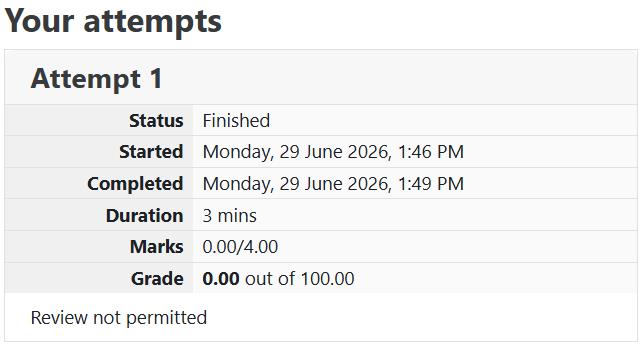
If you would like to confirm that your exam attempt is submitted successfully, once your computer has restarted:
- Log in to the LMS.
- Open your LMS unit page and navigate to the exam link.
- You should see a submission confirmation similar to the example below.
General exam enquiries
Contact Student Central
Campus location 360.3.046
Call us Australia:
1300 6873 624
Call us International:
+61 8 9360 6000
Call us Mandurah campus:
+61 8 9582 5501
Contact us online MyAnswers
Complex exam enquiries
Call us +61 8 9360 2544
Email us exams@murdoch.edu.au
You can also visit Student Central for further assistance.
Useful links
Download Respondus
Practice quiz (LMS)
Student support FAQ's
Contact us
For personalised support and advice, contact myMurdoch Advice.