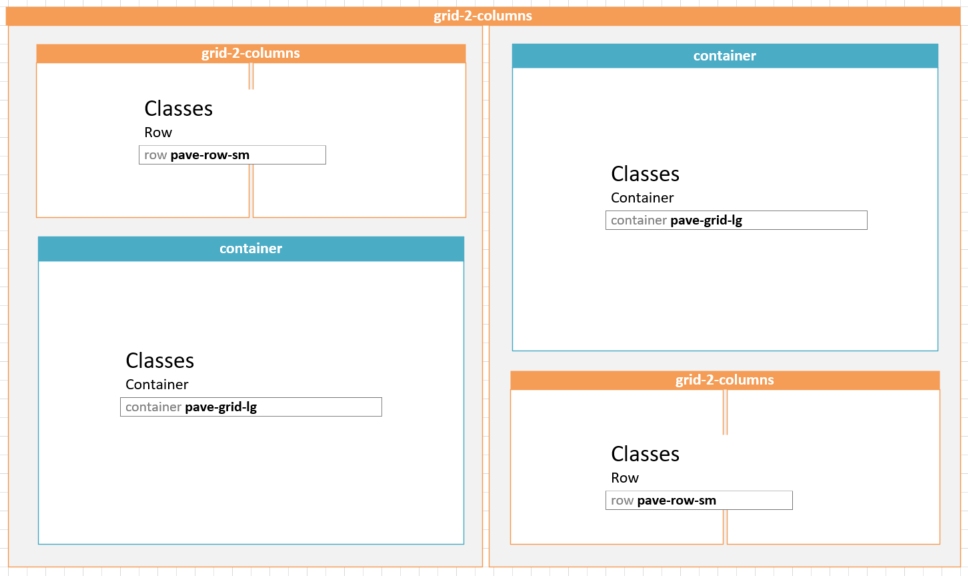
Paving Tiles are used exclusively on the home pages of the new MU websites. This layout comprises two elements:
- A Paving Grid to constrain content to the correct layout and proportions
- Widgets placed within the grid (typically Card widgets)
Building the grid
- In Layout view add a container layout widget to the page;
- If a background colour is required then this Container must be placed within a container-fluid layout widget;
- Inside the Container add a grid-2-columns layout widget - this will provide the two main columns of the layout;
- For the paving tiles themselves do the following:
- For the larger tile drag a container inside one of the two columns. Click Edit and add the classname pave-grid-lg to the Container field;
- For the smaller tiles drag a grid-2-columns layout widget into one of the main columns. Click Edit and add the classname pave-row-sm to the Row field.
- Note that the large and small tiles should alternate. See below for reference;
- Once the paving grid is built, switch to Content view and proceed to add widget as required.